
On Friday, getting dressed means grabbing the school backpack. On Saturday, it might mean finding the park shoes. My Daily Schedule gives autistic children and younger kids a picture routine for each kind of day, using photos of the things they know. Keep the day in view on an iPad and carry the next few steps with you on an iPhone.
As each task becomes available and is finished, your child can drag and drop its picture card into the All Done envelope. This hands-on interaction makes them part of the routine, with a visible way to mark each accomplishment and see what comes next.
A picture schedule your child can see, follow, and finish—on iPhone or a wall-mounted iPad. Drag finished tasks into All Done, with familiar photos, visual waiting timers, and optional family syncing.
Download ManualParent & Caregiver Guide · PDF · 48 pages
One schedule, two ways to use it
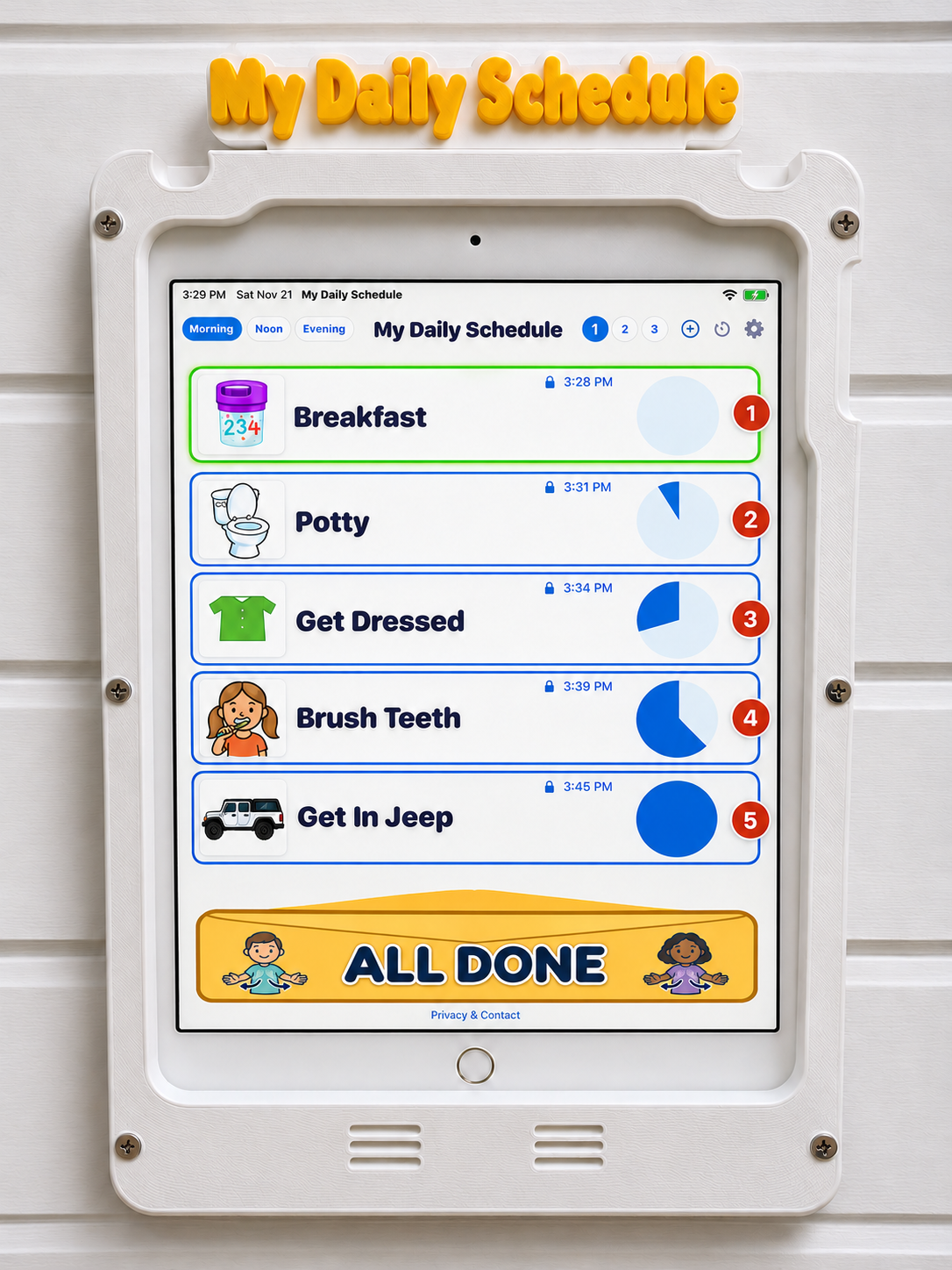
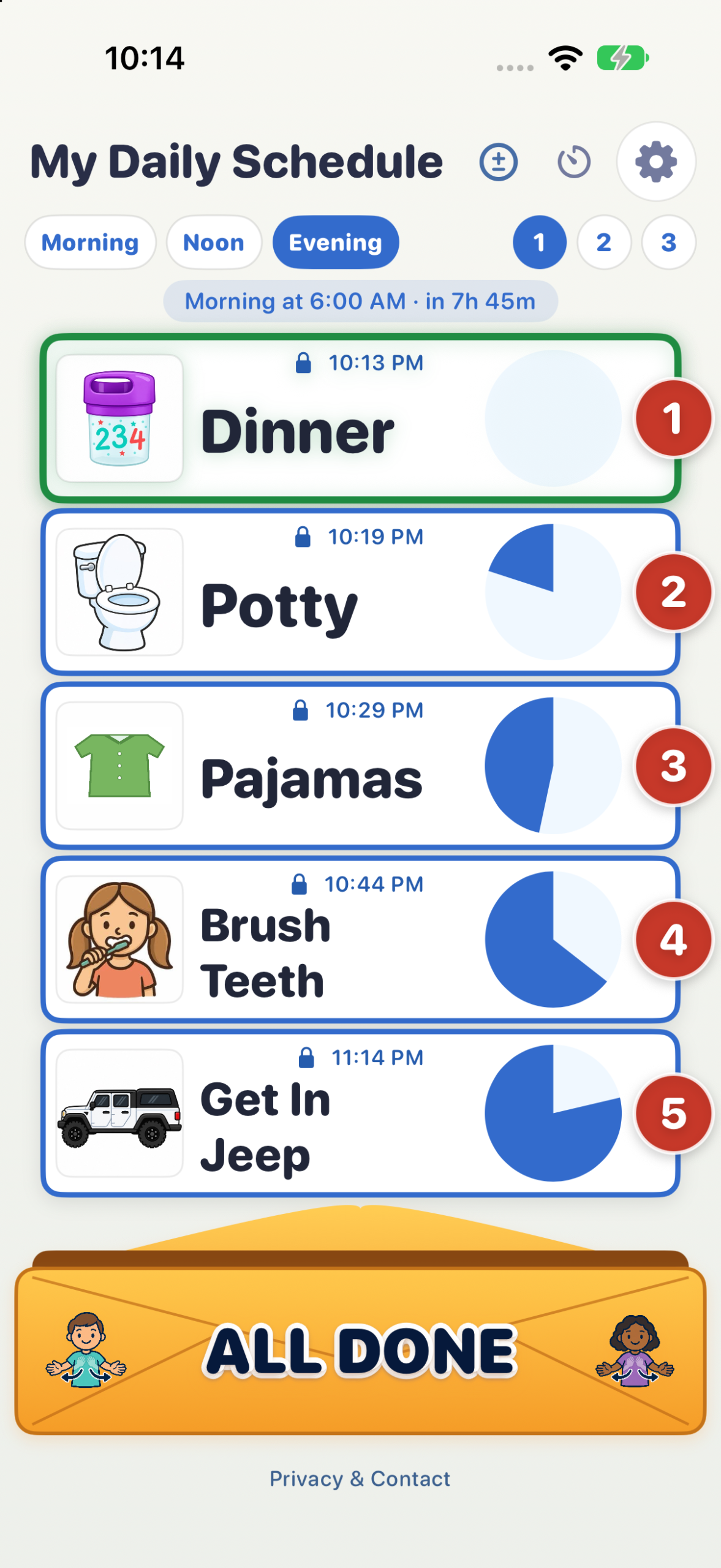
 Brush Teeth
 Spit in Sink
 Wash Hands
Set up the school week and keep the weekend ready
Morning, Noon and Evening each have three numbered boards. That gives you nine schedules you can set up once and use again. For example, your family might use 1 for school days, 2 for Saturdays and 3 for Sundays. Choose the time of day, then tap the number you want.
1 · School day
Morning · Pack backpack
Noon · Open lunchbox
Evening · Lay out school clothes
2 · Saturday
Morning · Make pancakes
Noon · Play at the park
Evening · Pick a movie
3 · Sunday
Morning · Get ready for church
Noon · Lunch at Grandma’s
Evening · Read together
On Saturday morning, tap Morning → 2 and the pancakes routine is ready. If you enable time-of-day switching, the app can bring up Noon 2 and Evening 2 at the times you choose. Your school schedules are ready when Monday comes.
Let the app pick the day’s board
Open Gear → Board and enable Auto change by time of day. Set the Morning, Noon and Evening switch times, then turn on Schedule board numbers by weekday.
The weekly schedule starts with board 1 Monday–Friday, board 2 Saturday and board 3 Sunday. Expand any day to choose a different number for each session. Lock the top board buttons can stay on: it blocks manual taps while automatic schedules still switch. These choices stay on each device during Dropbox sharing.
What comes after breakfast?
A child can look at the morning board, find Breakfast and see Brush Teeth coming up. After breakfast, your child drags the Breakfast card into the yellow All Done envelope at the bottom of the board. Moving the picture themselves can help them connect it with what they just did: “I ate breakfast. Breakfast is all done.” The empty space shows where they finished, and the next card shows where to begin. After the final task, the completed board stays visible.
Put a completed task back on the board
Finished a card too soon? Tap the All Done envelope to see the completed tasks. Scroll sideways to find the one you want, hold the blue drag handle beneath the card and drag it up onto the board, then release. The card returns to its original place.
Restoring a card clears the countdown. Its lock-until time still applies, and its automatic movement is paused for the rest of today so it stays on the board.
A burst of confetti celebrates the moment the card reaches All Done. It’s on by default. If your child prefers a quieter finish, open Options → Board and turn off Confetti when a task is done.
Make room for a change of plans
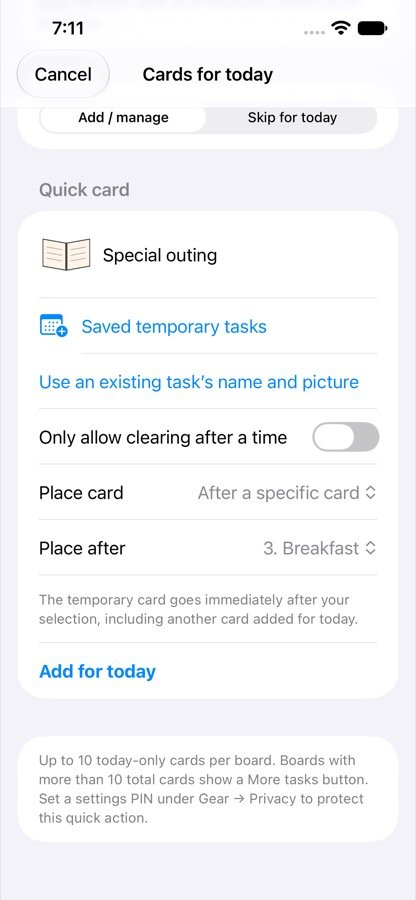
A surprise visit to the park can fit right after breakfast. On today’s board, tap ± → Add / manage. Type “Park” or pick it from Saved temporary tasks. Under Place card, choose After a specific card, select Breakfast, then tap Add for today. The park visit drops off the schedule tomorrow. To remove it sooner, open ± → Add / manage and tap − Remove beside it under Today on this board. On a snow day, skip the school card for today and it returns the next day.
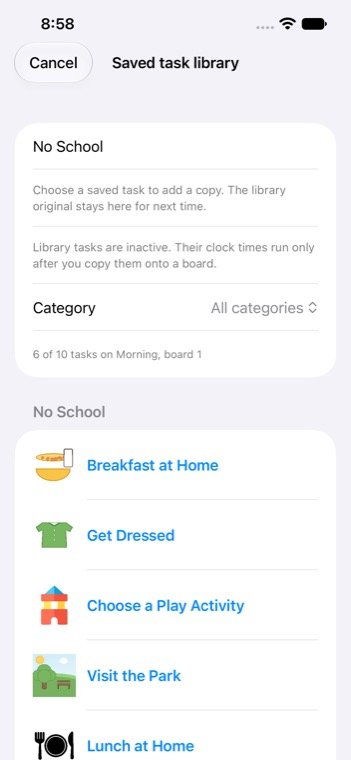
Save a holiday or grandparents’ visit in the task library to use again. The next time the family visits, you can add the saved card again.
Use a picture your child recognizes
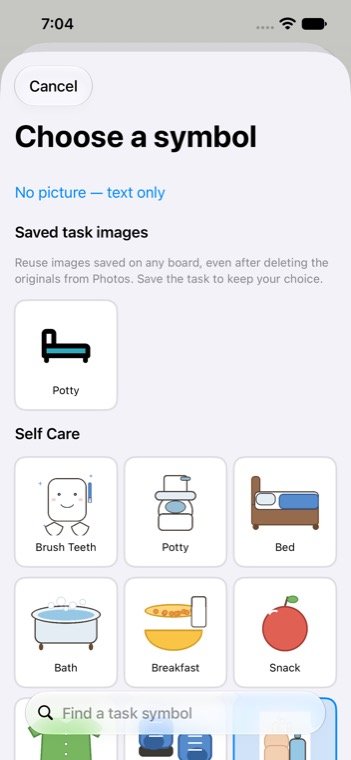
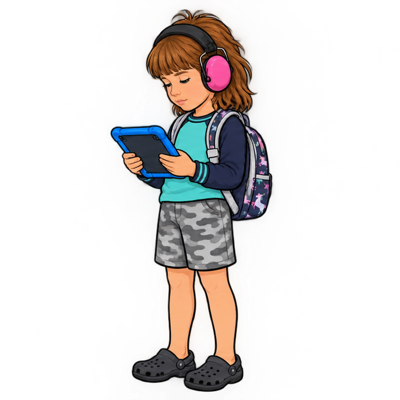
A picture of a bag tells your child what kind of thing to find. A photo of their own blue backpack by the door shows exactly which one to pick up. You can also photograph Grandma’s front door for Sunday lunch or the playground entrance for Saturday’s outing. Open Options → Edit, find the task and tap Use a photo instead. Pick the photo, type the words you use at home, then tap Save task.
To use that backpack again on a weekend board, tap the other task’s picture and choose it from Saved task images.
When can a card go into All Done?
See the wait getting smaller
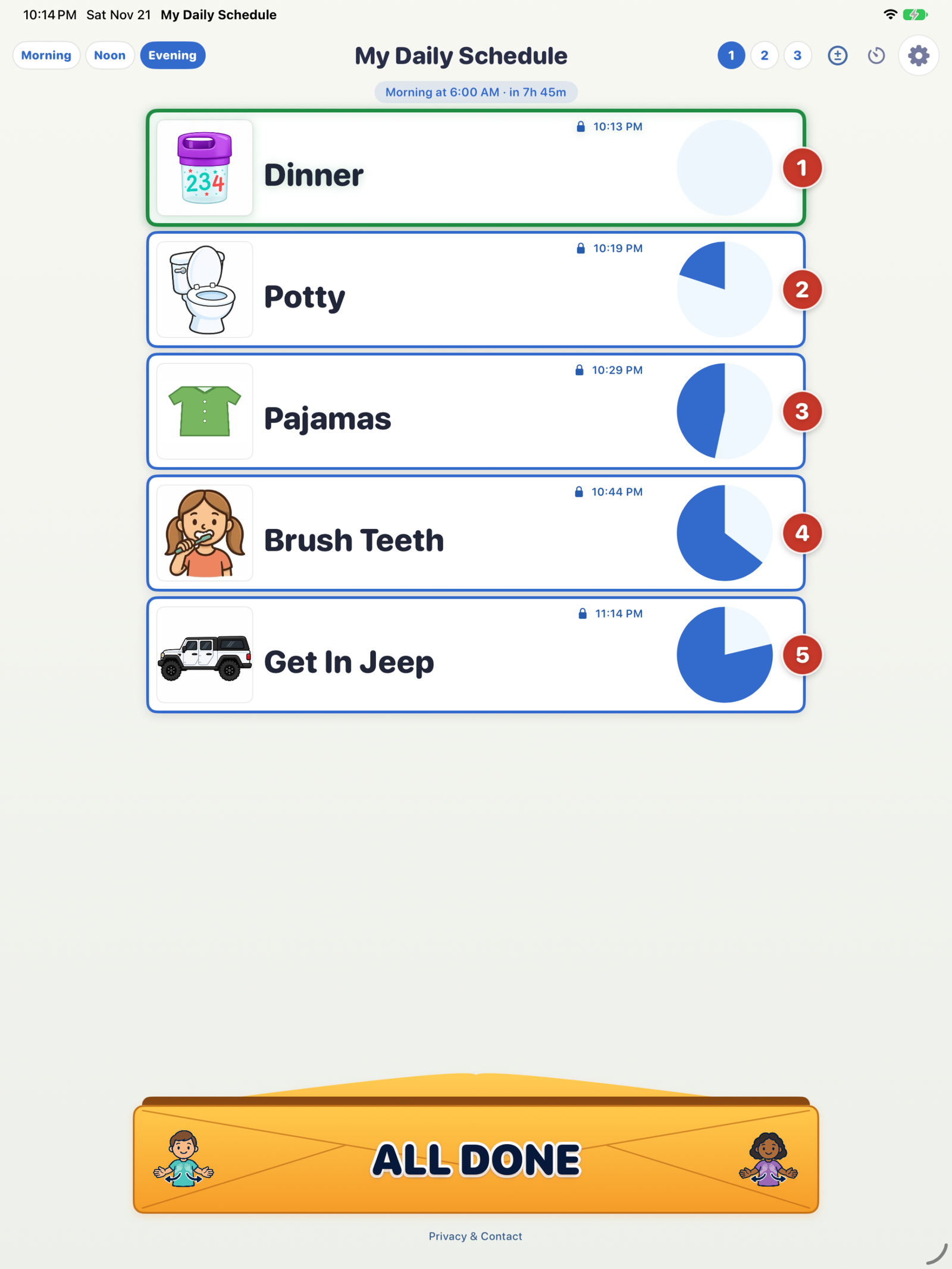
Every task with a lock-until time can show a large visual countdown circle, helping your child see how much waiting remains before that task is available to move into the All Done envelope. The circle shows how much of the session’s wait remains, measured from its start to the task’s lock-until time. With automatic board switching off, Morning starts at 6:00 AM, Noon at 12:00 PM and Evening at 4:00 PM. With automatic switching on, it uses that device’s configured session switch times. It calculates the correct fill immediately when the board loads or a task is added, then updates every minute until empty at the unlock time.
Blue is the time still left. For an Evening task locked until 8:00 PM, with a 4:00 PM session start, about 54% of the circle remains at 5:51 PM. Reopening the app or switching boards does not refill it. Tasks with the same lock time show the same amount remaining. Empty means the lock time has arrived. The task must also be first in order and any pacing wait must be finished; the green outline confirms it is ready to drag. Your child can move the card after completing the activity.
Open Options → Board → Visual task timer to turn the circles on or off. They are on by default and appear only on time-locked cards. This display preference stays on each device during sync; a full backup restores it.
Green means ready to drag. A thicker green outline and a subtle green glow show the task your child can move now. Cards waiting for their turn, a clearing time or a countdown keep their blue outline. When the next card becomes available, it turns green automatically.
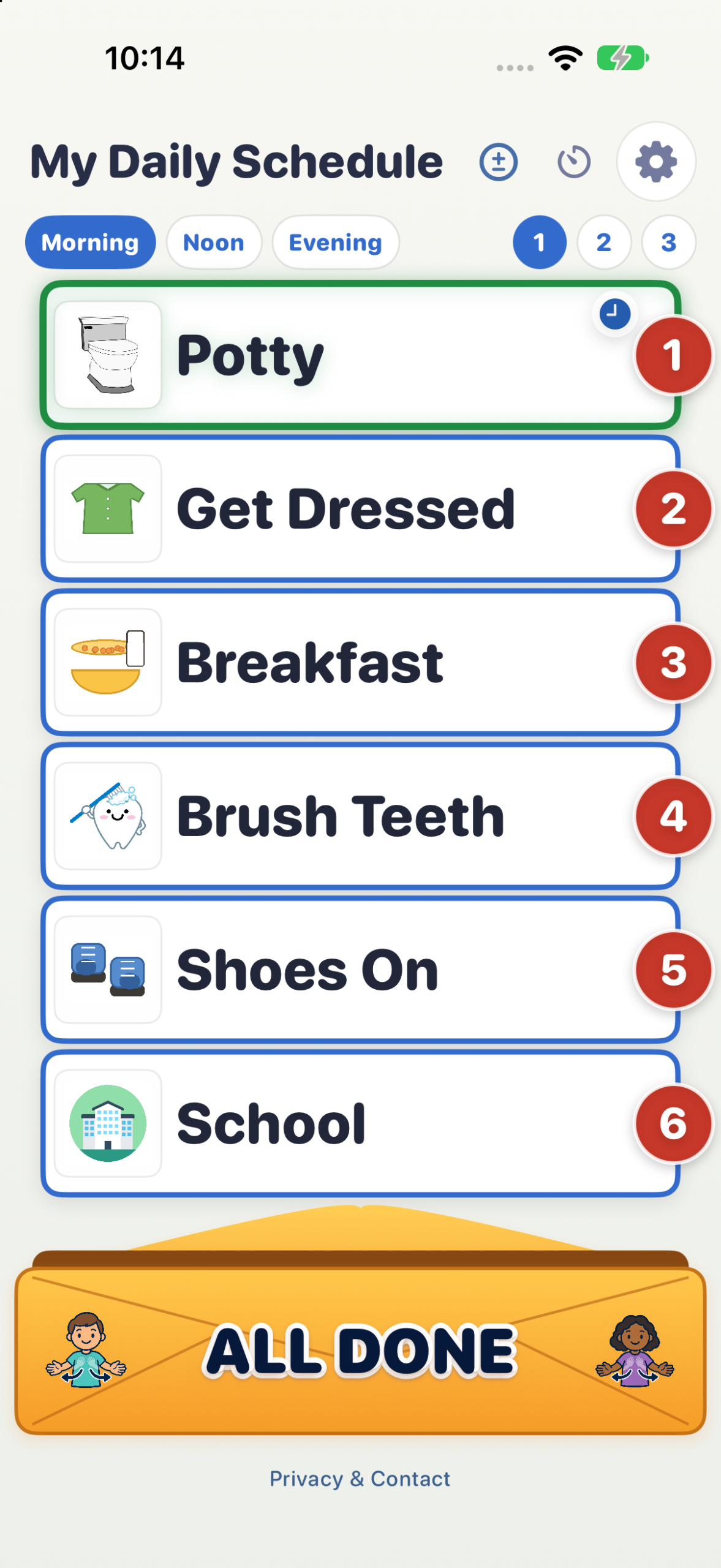
Let your child finish it after a set time. If Lunch keeps disappearing before noon, open Options → Edit on its board. Turn on Only allow clearing after a time, set Can clear after to noon and tap Save task. The lock shows the time. Once Lunch is next in line, its clearing time is reached and any countdown has finished, its outline turns green. Your child can then drag it into the envelope after eating.
Have the board move a card automatically. If quiet time ends at 2 PM every day, edit Quiet Time, turn on Move to All Done automatically, set Move at to 2 PM and save. A small clock marks the card. It moves at that time while the app is open. If the iPad was asleep, today’s overdue cards catch up when the app reopens.
Brush Teeth: a task with detailed steps
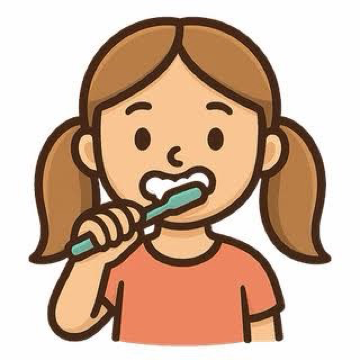
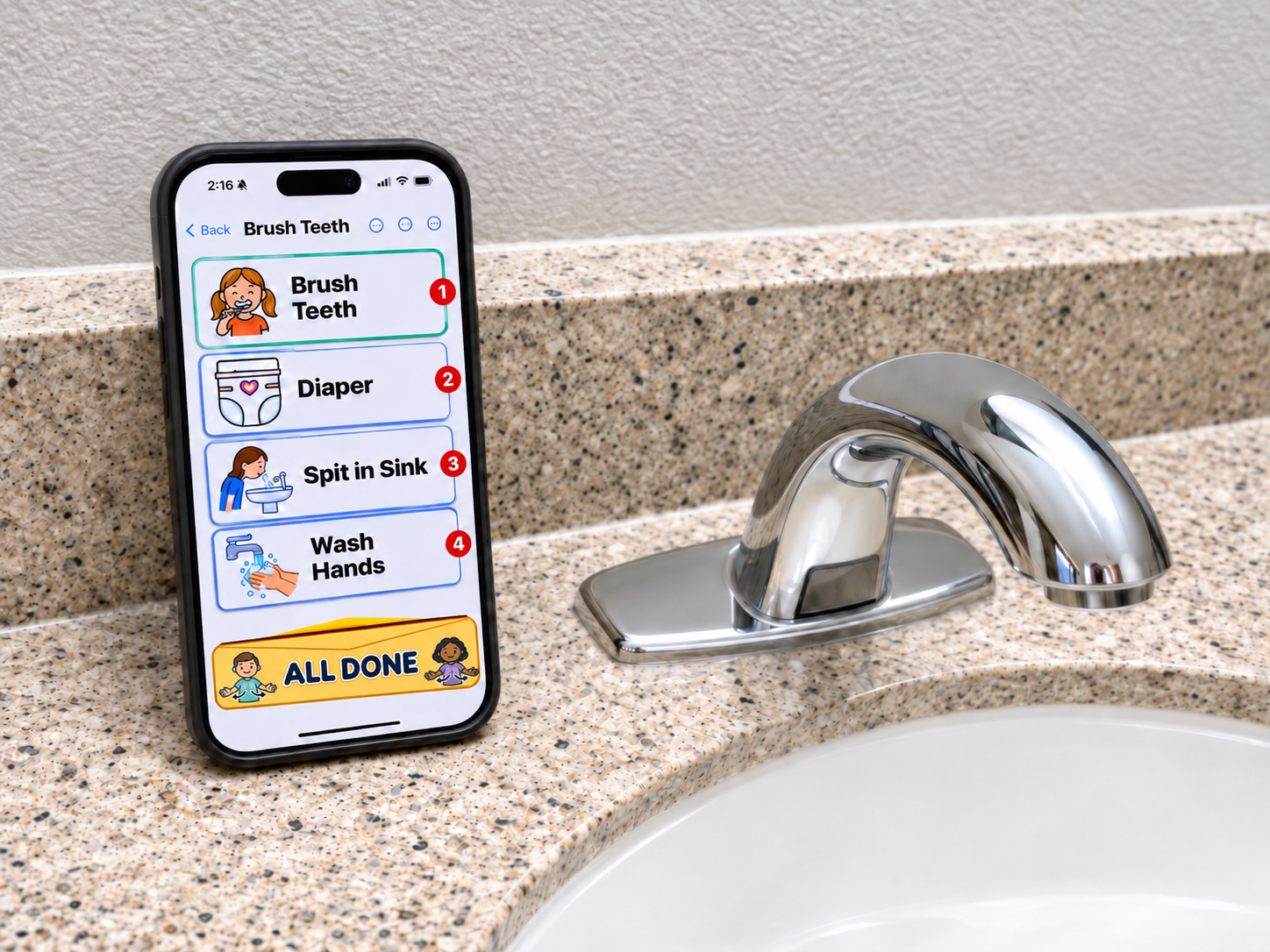
“Brush Teeth” can be one card on the kitchen iPad. Take the iPhone to the sink and open that card’s sub board for the smaller steps: Brush Teeth, Spit in Sink, Wash Hands.
- Enable it on the phone. Open the gear, choose Sub boards and turn on Open sub boards with a 2-second hold. You can keep this turned off on the wall iPad.
- Hold the card still for two seconds. Look for the stacked-board icon beside the lock icon and clearing time. On a task without a time lock, it appears above the task name. Keep your finger in place until its steps open.
- Finish one step at a time. Drag each finished step into All Done. Tap Back to return to the main schedule, where you can finish the original Brush Teeth card.
- Brush Teeth
- Spit in Sink
- Wash Hands
Keep an iPad where everyone can see it
A stationary iPad gives the schedule a familiar place in the home. Set the times for Morning, Noon and Evening to bring up each board as the day progresses.
Keep the iPad in My Daily Schedule
With Guided Access, your child can drag cards into All Done while the iPad stays in the schedule app. A caregiver can end the session with a passcode.
Turn it on in Settings → Accessibility → Guided Access and set a passcode. Open My Daily Schedule and triple-click the Home button (or the top button on an iPad without a Home button). Choose Guided Access if prompted, leave Touch enabled for dragging cards, and tap Start. To type in the caregiver area, enable Software Keyboards in Guided Access’s Options / Session Settings. If the keyboard will not appear, pause Guided Access, enable that setting and Resume, or End the session while editing. End Guided Access before opening account invitations in Messages, Mail or Safari. Apple’s Guided Access instructions
Our optional iPad Wall Mount Case: A white case with raised yellow “My Daily Schedule” lettering gives 7th, 8th and 9th generation iPads a dedicated place for the daily routine. Keep the next task in view, drag finished cards into All Done, and use the phone for detailed steps away from the wall. We offer an optional physical iPad Wall Mount Case here, available to purchase separately. iPad not included.
One app, up to four children
Choose a child to change the sample board below.
Brynna’s schedule
Morning · School day
- Ready nowBreakfast1
- 🔒 7:10 AMPotty2
- 🔒 7:20 AMGet Dressed3
- 🔒 7:30 AMBrush Teeth4
- 🔒 8:00 AMSchool5
Illustrative task cards and sample times. Choose another child above to see a different routine.
Eva’s schedule
Noon · Day at home
- Ready nowLunch1
- 🔒 12:30 PMQuiet Time2
- 🔒 1:00 PMStory Time3
- 🔒 1:30 PMPlayground4
- 🔒 2:00 PMSnack5
Illustrative task cards and sample times. Choose another child above to see a different routine.
Emily’s schedule
Morning · Weekend
- Ready nowPancakes1
- 🔒 8:20 AMGet Dressed2
- 🔒 8:40 AMFeed the Cat3
- 🔒 9:00 AMVisit the Library4
- 🔒 10:00 AMPlay Outside5
Illustrative task cards and sample times. Choose another child above to see a different routine.
Noah’s schedule
Evening · Wind down
- Ready nowDinner1
- 🔒 6:00 PMBath Time2
- 🔒 6:15 PMPajamas3
- 🔒 6:30 PMBrush Teeth4
- 🔒 7:30 PMBedtime5
Illustrative task cards and sample times. Choose another child above to see a different routine.
Enable Child profiles in Options to give each child their own nine boards, sub boards, saved tasks and daily progress. Add a name or nickname and an optional photo, then use the selector above the board to choose a child. Profiles are off by default, so the familiar single-schedule view stays simple until you need more.
Keep a wall iPad on one child. In Child profiles, choose Lock this device to and select that child. A parent’s phone can still switch between the children. Protect Options with the settings PIN to keep caregiver controls private.
Enabled iCloud or Dropbox sync shares all profiles together, including boards, pictures, task lock times and completion/restoration. The selected child, profiles on/off and profile lock stay local, so switching on the phone does not change which child is shown on the wall. Full backups contain every profile and saved device settings. Update every family device before sharing profiles.
One family schedule, across your devices
Change a task on your phone and keep the wall iPad in step. Automatic sharing includes all child profiles and optional names/photos, boards, task photos and text, order, added/deleted tasks, lock-until times, saved tasks, sub boards and today-only cards. Completing a task or restoring it from All Done updates the other devices too.
iCloud · Recommended for iPhone and iPad
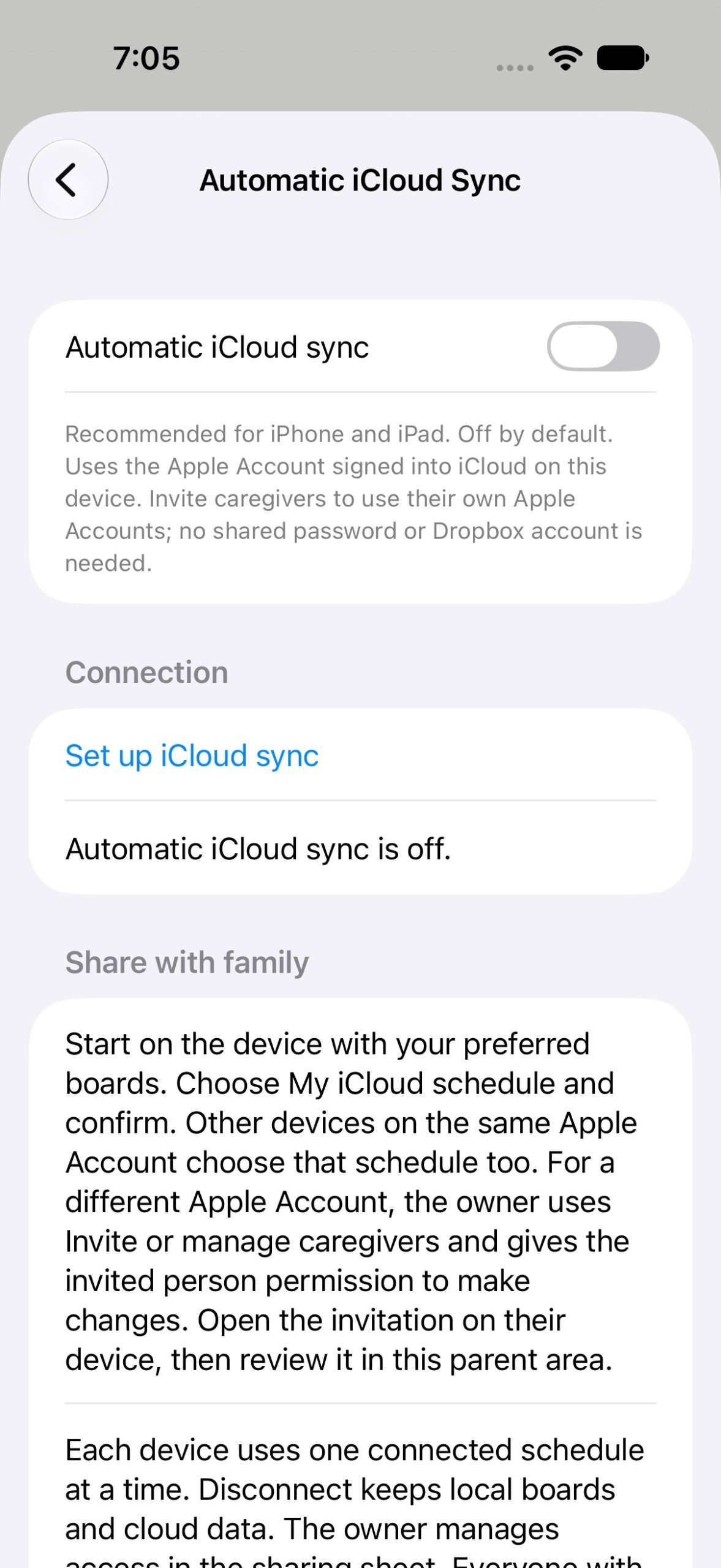
Use the Apple Account already on your device. Devices on the same account choose My iCloud schedule. Invite a caregiver on a different Apple Account through Invite or manage caregivers, send the invitation in Messages or Mail, and have them open the link. They then choose Review invited schedule → Use iCloud Schedule in the app.
No shared password or separate app sync subscription. The schedule uses its owner’s available iCloud storage.
Dropbox · An automatic alternative
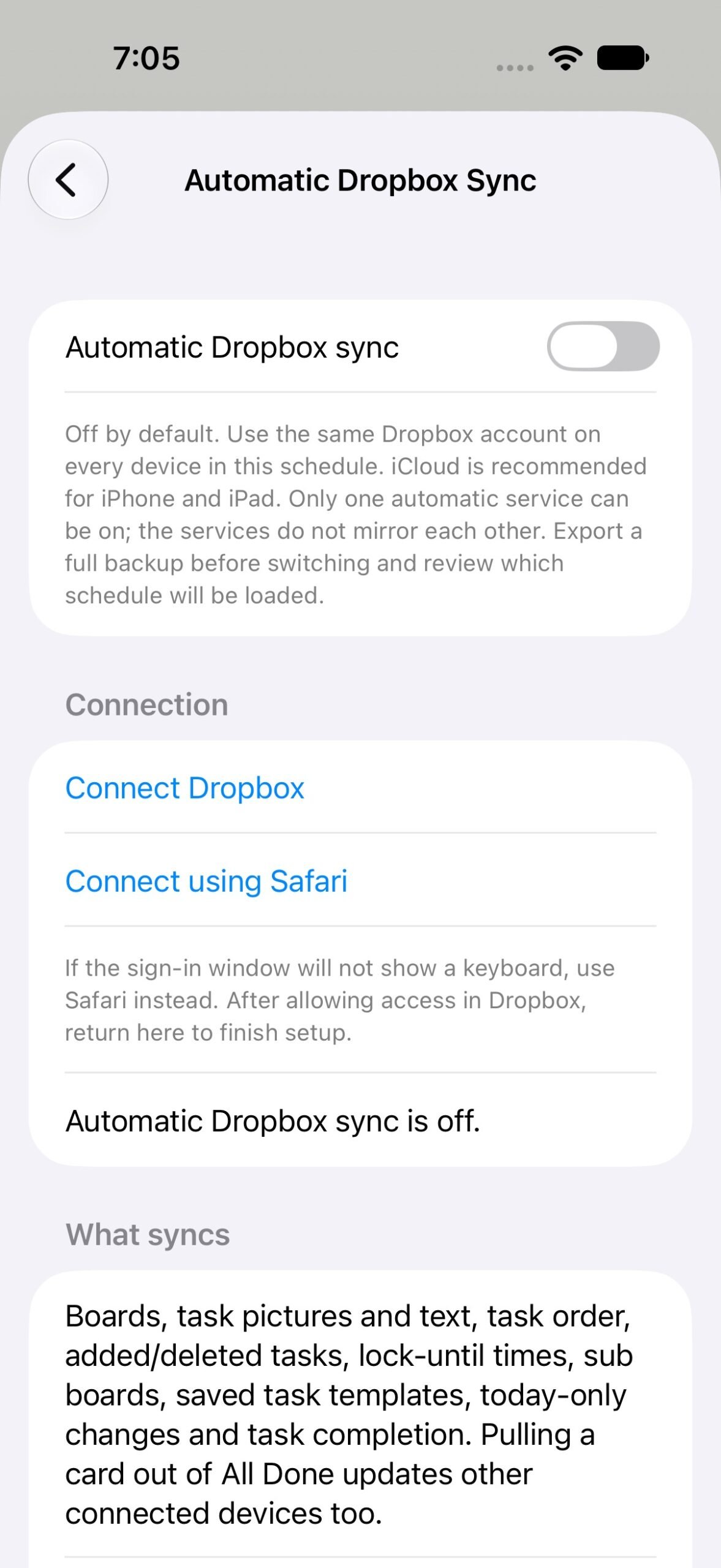
Connect the same Dropbox account on every device in the family schedule. Choose Automatic Dropbox Sync → Connect Dropbox → Use Dropbox Schedule. If the sign-in keyboard is unavailable, use Connect using Safari.
A free Dropbox account with available space works; installing the Dropbox app is optional. Its Basic three-device limit applies to Dropbox’s own installed apps. Dropbox device-limit details.
Choose one service. Automatic syncing is off by default. Open Options → Backup & Transfer to set it up. Only one automatic service can run at a time. Every device in a family schedule must use the same service; iCloud and Dropbox do not mirror each other. Export a full backup before switching and review which cloud schedule will load.
Different Apple Accounts must join the same invitation. On another caregiver’s phone, choose the invited family schedule rather than that person’s own My iCloud schedule. Two devices can both report “Up to date” while connected to separate schedules. Use Choose an iCloud schedule to select the shared family schedule and confirm Use iCloud Schedule.
Allow up to five minutes
Other open devices may take up to five minutes to show board updates; iCloud notifications can deliver them sooner. Offline, sleeping or closed apps may take longer because iOS controls background execution. Reopen the app or use Sync Now in the selected service’s settings. Return from Options to the board to see incoming changes.
Your device keeps its own controls: automatic task-movement times, Morning/Noon/Evening and weekly board switches, countdown preferences, visual timer display, profiles on/off, selected child, device profile lock, PIN and sub-board switches stay local. Lock-until times travel with the tasks.
Keep a full backup too. Export All Boards saves the complete setup, including settings, photos, PIN and same-day progress. Import it to restore another device, then connect cloud sharing separately. Manual file sharing (Dropbox / Files) remains an explicit publish/check alternative when automatic sync is off.